
How To Change Your Name On Facebook
Article
2025-12-09 • 6 min read

How To Change Your Name On Facebook

For many people, the name that appears on their Facebook profile is more than just a label; it’s a reflection of identity, personal branding, and how friends and colleagues recognize them online.

For many people, the name that appears on their Facebook profile is more than just a label; it’s a reflection of identity, personal branding, and how friends and colleagues recognize them online. There are legitimate reasons to update this information—from after a marriage or legal name change to adopting a preferred name that better matches daily usage. This guide explains how to change your name on Facebook, what to expect from the process, and how to handle common obstacles. It also offers a practical comparison of similar options on other major platforms so you can weigh your choices if you manage multiple accounts.

First, a quick note on why changes might be restricted. Facebook maintains a name policy designed to prevent impersonation and misrepresentation. The policy emphasizes using your real name or the name you are commonly known by, with allowances for nicknames or commonly used variations. The platform discourages creative spellings, titles, or symbols in the main name field. If your request conflicts with these rules, changes may be delayed or denied, and you may be directed to add an alternative name or provide additional information to verify your identity. If you anticipate trouble, plan ahead by choosing a name that aligns with your offline usage while still reflecting how you’re known online.

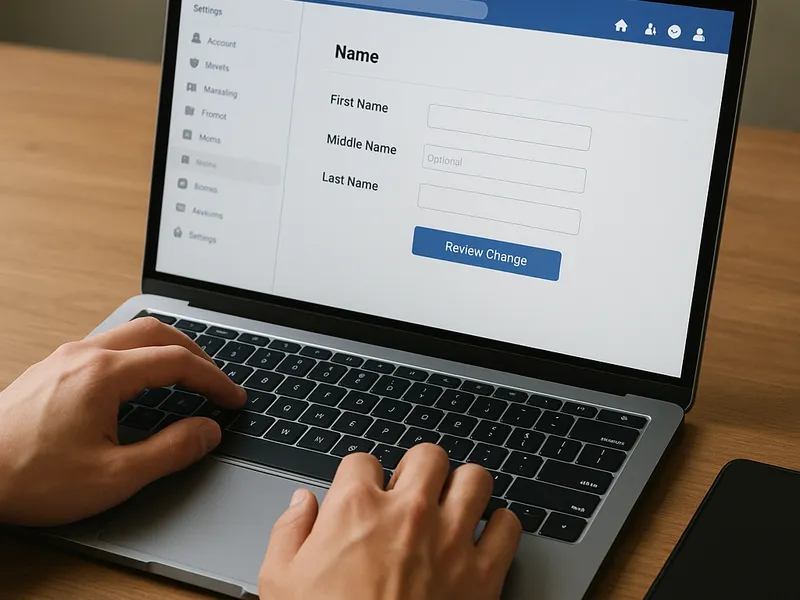
Changing your name on a computer or laptop (desktop process) - Start by logging into Facebook and locating the top-right menu. Open Settings & Privacy, then select Settings. - In the General tab, you’ll find your current name listed. Click Edit to begin the change. - Enter your new first name, middle name (if any), and last name. Facebook will show a preview of how your new name will appear. Make sure it adheres to policy and matches the name you intend to be publicly visible. - After you’re satisfied with the preview, click Review Change. You’ll be asked to enter your password to confirm the modification. - Submit the change. In most cases, the update is applied immediately or within a few minutes. If your request requires further review, you’ll receive a notification explaining additional steps or documents needed.

Changing your name on a mobile device (smartphone or tablet) - Open the Facebook app and access the menu, usually represented by three horizontal lines. Go to Settings & Privacy and then Settings. - Tap Personal Information, then Name. You’ll see the current name and the option to Edit. - Input your new name in the appropriate fields. Review the preview to ensure it looks right. - Confirm the change by tapping Review Change, then entering your password when prompted. - Save or confirm. Like the desktop method, changes made on mobile typically update quickly, but occasional delays can occur due to processing or policy checks.

How To Change Your Name On Facebook

If your name change is blocked or rejected - Facebook may require you to use a version of your name that aligns with your official documents or the name you are most commonly known by in real life. If you want to proceed with a nickname or a stage name, you can add it as an Other name in the About section. This designation allows the alias to appear on your profile without altering the primary name. - In some cases, you may be asked to submit documentation to verify your identity. This can include government-issued ID or other official documents. The goal is to confirm that the name you want to display is authentic to you. - Remember the 60 day rule: you can’t change your name again for at least sixty days after a change. Plan accordingly if you anticipate needing to switch names again soon.

Best practices and practical tips - Align with real-world usage: Use a name you commonly use offline or that friends and colleagues would recognize. This reduces friction in both name approvals and friend connections. - Distinguish between name and username: Facebook’s Name field is separate from your username (the web address part, like facebook.com/yourname). The username is more about your handle and is subject to its own rules and availability. - Use the provided “Other names” field: If you have a maiden name, nickname, or professional alias, you can list it there so people know who you are while your primary name remains stable and policy-compliant. - Avoid punctuation and overly elaborate forms: Excessive punctuation, all-caps, titles, numbers tied to a professional identity, or fabricated phrases often trigger policy concerns. - Consider accessibility and consistency: Keeping a name that’s consistent across platforms can reduce confusion when friends, colleagues, or clients search for you.

How this compares with similar options on other major platforms - Instagram (often used alongside Facebook): Instagram distinguishes between a display name and a username. Display names can be updated more flexibly, and the platform focuses on what you appear as to others, while the username is your unique handle. This flexibility makes it easy to reflect a preferred name without touching the core account identity. - LinkedIn: Named for professional contexts, LinkedIn emphasizes real names and a consistent professional identity. Name changes are supported, but abrupt shifts might impact professional searches and endorsements. A careful approach, especially for career-focused profiles, is advised. - Twitter/X: Name changes are straightforward and usually instantaneous, with the handle remaining the same unless you choose to alter it separately. This platform is often used for quick updates to identity, but changing the handle is a separate process with its own considerations. - Overall takeaway: If you need a quick, low-friction update, more casual platforms like Instagram or Twitter offer flexible display-name changes. For professional or real-name branding, Facebook and LinkedIn provide stronger identity controls, with clearer policy boundaries and verification processes.

Additional suggestions for users - Plan ahead if you expect a name change during professional transitions or personal milestones. A brief advance check can save disruption for friends, colleagues, or clients who rely on your identity for recognition. - Review privacy implications after a name change. The visibility of your profile, friend requests, and who can search for you can be affected by changes in how your name appears. - If privacy is a concern, you can pair name updates with changes to other profile details, like your profile picture, cover photo, or About section, to maintain consistent recognition while adapting to new circumstances.

In the end, changing your name on Facebook is a straightforward process when you understand the policy framework and the practical steps across desktop and mobile platforms. By aligning with common usage, using available aliases when appropriate, and being mindful of platform-specific constraints, you can manage your online identity with confidence. If you find yourself navigating other social platforms, the general approach—clarity, consistency, and adherence to platform guidelines—will help you maintain a cohesive digital presence across spaces where names matter.

← Back to all articles